ChatGPT Photo Editing Prompts: Create Professional Headshot Photos Without Changing Your Face
Discover the best ChatGPT photo editing prompts to create professional headshots without changing your face. Learn how to transform ordinary photos into LinkedIn-ready, corporate, studio, and social media profile pictures using AI while keeping your facial features completely natural.
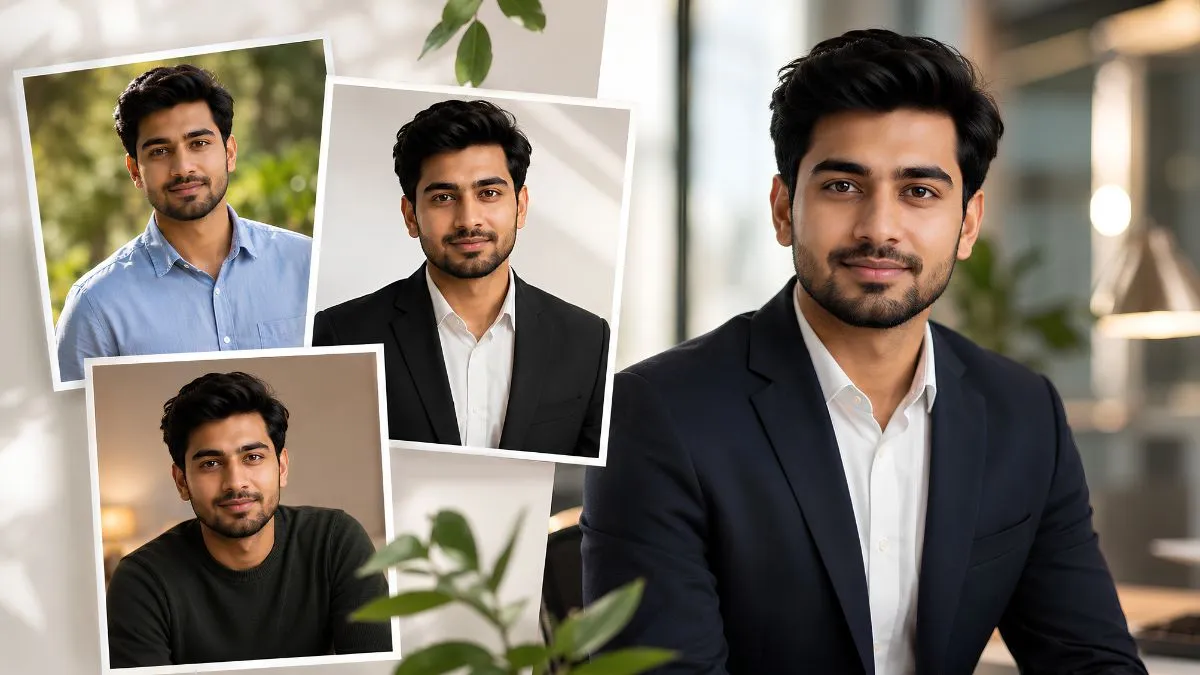
They say the first impression is the last impression, and a photo speaks for itself. This is why a professional photo becomes extremely important. Whether you are adding it to your resume or updating it on your LinkedIn profile, your professional photo can be the reason you get that call from the recruiter or not. But what makes a good professional headshot? Worry not, you can create professional headshots without changing your face using effective ChatGPT prompts.
So, enhance your profile by using these easy ChatGPT photo editing prompts and boost your career.
What are ChatGPT Photo Editing Prompts?
A ChatGPT photo editing prompt is a structured text in which you give instructions to ChatGPT or other AI tools like Google Gemini, Midjourney, or Media.io to create or edit your photos along with your uploaded photos.
After the instructions are given to these AI tools, they read your prompt, analyse it as per user demand, then edit the photos according to the prompt and generate the images as per your instructions.
Quick Tips
Before moving ahead with creating professional headshots from these ChatGPT photo editing prompts, here are a few quick tips:
-
Use a clear, HD photo for best results.
-
Make sure your face is visible, not blurry.
-
Copy the prompt exactly and paste it into your AI tool.
-
You can swap out words in [brackets] to match your own needs.
ChatGPT Photo Editing Prompts to Create Professional Headshots Without Changing Your Face
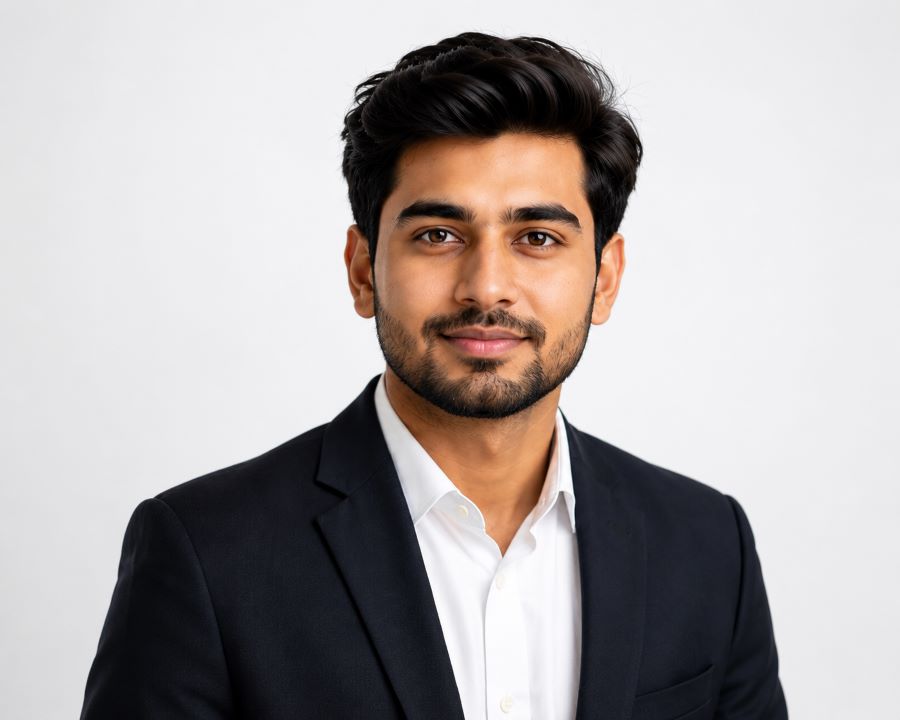
Prompt 1: Clean Professional Headshot for LinkedIn or Resume
Source: ChatGPT
Best for: Job seekers, professionals, students
"Edit this photo to look like a professional headshot. Keep my face exactly the same. Do not change my skin tone, facial features, or expression. Replace the background with a clean, plain white or light grey background. Improve the lighting so my face looks bright and clear. Make sure the photo looks neat and formal, like something you would use on LinkedIn or a resume."
What this does: It cleans up messy or busy backgrounds and adds soft, professional lighting. Your face stays untouched.
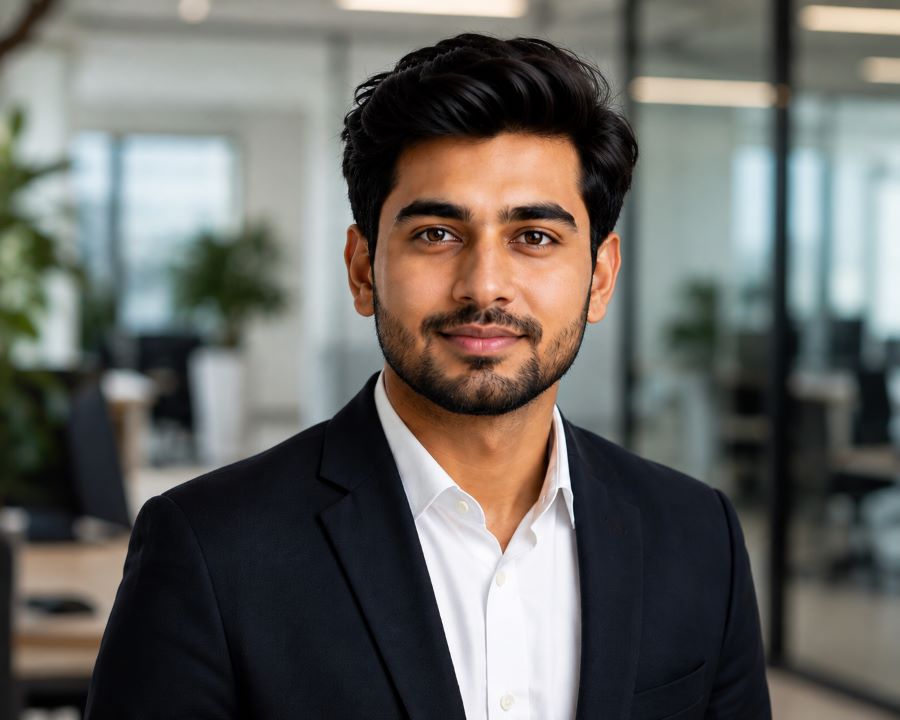
Prompt 2: Corporate Office Look
Source: ChatGPT
Best for: Business professionals, managers, corporate job applications
"Take this photo and make it look like it was taken in a modern office. Keep my face exactly as it is. Do not change any facial features. Add a soft, blurred office background behind me with glass walls or a clean desk area. Fix the lighting to look natural and professional. Adjust my clothing area only if needed to look more formal, but do not change my face or head."
What this does: It adds a professional office feel to your photo without making you look like someone else.
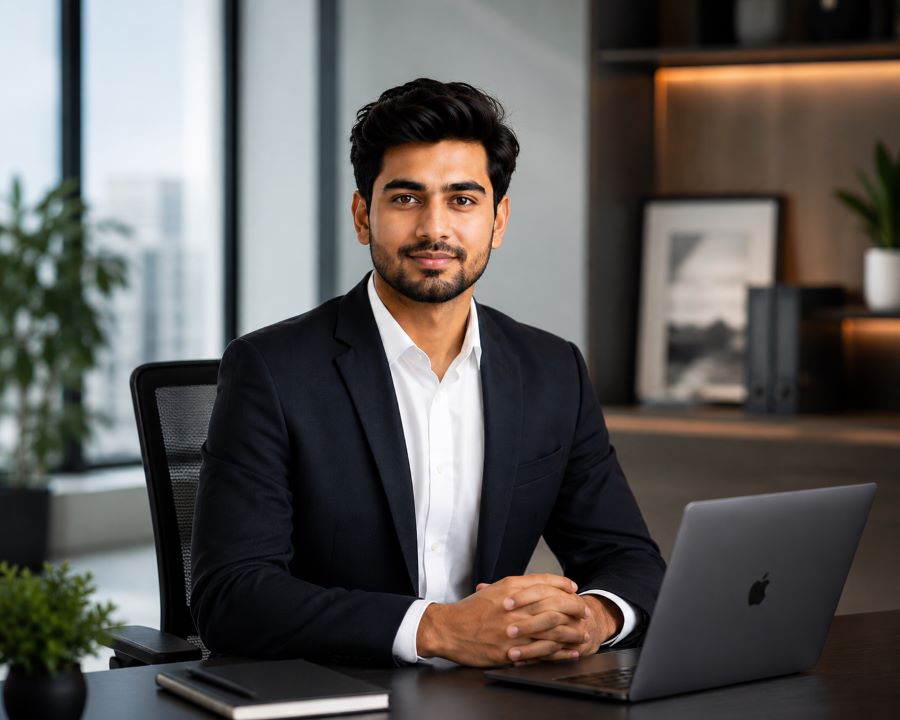
Prompt 3: Outdoor Natural Light Headshot
Source: ChatGPT
Best for: Creatives, coaches, teachers, social media profiles
"Edit this photo to look like it was taken outside on a bright, sunny day. Keep my face completely the same. Do not change my skin colour, eyes, or any facial details. Replace the background with a soft, blurred outdoor setting like green trees or a park. Make the lighting look warm and natural, like golden hour sunlight. The overall photo should feel friendly and approachable."
What this does: Gives your photo a relaxed, warm, and natural look. Great for people who want to seem friendly and easy to talk to.
Prompt 4: Studio-Style Headshot with Gradient Background
Best for: Actors, models, speakers, coaches
"Edit this image to look like it was taken in a professional photography studio. Keep my face exactly as it appears. Do not alter my facial features, expression, or skin tone in any way. Add a smooth gradient background in a dark blue or charcoal grey colour. Improve the contrast and sharpness of the whole image. Add soft studio lighting that comes from the side to give depth. Make it look high quality and polished."
What this does: Creates a bold and dramatic studio-style headshot. Often used for speaker bios and media kits.
Prompt 5: Casual but Clean Social Media Profile Photo
Best for: Influencers, bloggers, freelancers, personal brands
"Lightly edit this photo to make it look clean and nice for social media. Keep my face completely unchanged. Do not touch my skin tone, facial features, or hair. Only improve the background by making it neat or slightly blurred. Adjust the brightness and colours to make the photo look warm, bright, and cheerful. Keep the style casual and natural, not too formal."
What this does: Makes your photo pop on Instagram, Twitter, or any personal website without making it look heavily edited.
Prompt 6: Remove Distracting Background and Add Simple Colour
Best for: Anyone who has a messy or busy background in their photo
"Remove the background from this photo completely. Keep my face, hair, and clothing exactly as they are. Do not change my facial features or skin tone. Replace the background with a single solid colour. Use a soft light blue, warm beige, or mint green. Make sure the edges around my hair and shoulders look clean and natural, not sharp or cut out. The final photo should look smooth and professional."
What this does: Removes clutter from your background and replaces it with a clean, calm colour. Very useful if your original photo was taken in a messy room.
How to Use These Prompts?
To use these ChatGPT photo editing prompts to create professional headshots without changing your face, here is the step-by-step guide for how to use these prompts:
-
Open your AI tool (such as ChatGPT with image editing, Adobe Firefly, or any AI photo editor that lets you upload an image).
-
Upload your photo.
-
Copy one of the prompts from above and paste it into the chat or prompt box.
-
Wait for the result and check if the face looks unchanged. If something looks off, type "Please keep my face exactly as it was in the original photo and try again."
-
Download and use your new professional headshot.
So, finally, you all came to know how you can use these ChatGPT Photo Editing Prompts to create professional headshots without changing your face. Use these 6 prompts, and create your professional photos without spending money or without having editing skills, to get a great headshot.
He has contributed to top platforms like Mentorship India, IAS BABA, and IAS SARTHI, delivering engaging articles on trending topics and global affairs. As a content writer for Jagranjosh.com, Prabhat specializes in crafting high-quality, insightful content for the G.K. and Current Affairs section, driving engagement and providing value to a wide audience.
Reach him at prabhat.mishra@jagrannewmedia.com, and explore his work on Jagranjosh.com for the latest updates and analyses!


-1780075997754_t.webp)
