Key Points
- UPSC launched a new online application portal for exams.
- Old OTR module is no longer applicable; fresh registration needed.
- Candidates can complete registration at upsconline.nic.in
UPSC OTR Login 2026: The UPSC Online Application Portal has four parts, arranged in 4 separate sections at the home page, three of which namely, Account Creation, Universal Registration and Common Application Form are common to all examination applications and can be filled anytime by the candidates. The fourth part i.e. Examination displays the examination notices as and when notified, Examination Application link and applications status. Applications can be filled during the time period allowed in the notification of an examination. All applicants are required to fill up the application and upload their documents in the newly introduced portal afresh. The old One Time Registration (OTR) module is not applicable anymore.
UPSC OTR Login
The UPSC’s old portal for the One Time Registration requires the candidates to fill in their basic personal details alongwith the upload of some documents such as the photograph and signature in the prescribed format to generate OTR number. This OTR number will be used when the recruitment process for any exam conducted by the UPSC starts. The OTR number and password are used to login to the candidate’s dashboard and the candidates are required to fill in the remaining details which were not filled during the OTR process. But, now, the new UPSC Online Application Portal has been launched which is very different from the old system. Let’s check how to complete the step-by-step registration process in the new application portal.
Apply Here for UPSC CSE 2026
How to do the OTR Registration in the New Application Portal?
Candidates who wish to apply for the various recruitment examinations conducted by the UPSC throughout the year. The candidates can complete the three modules out of the four modules anytime throughout the year. The last or the fourth module which is for Examinations can be filled up only when some recruitment notification has come up. So follow the steps provided below to fill the three modules: Account Creation, Universal Registration and Common Application Form.
1.Account Creation
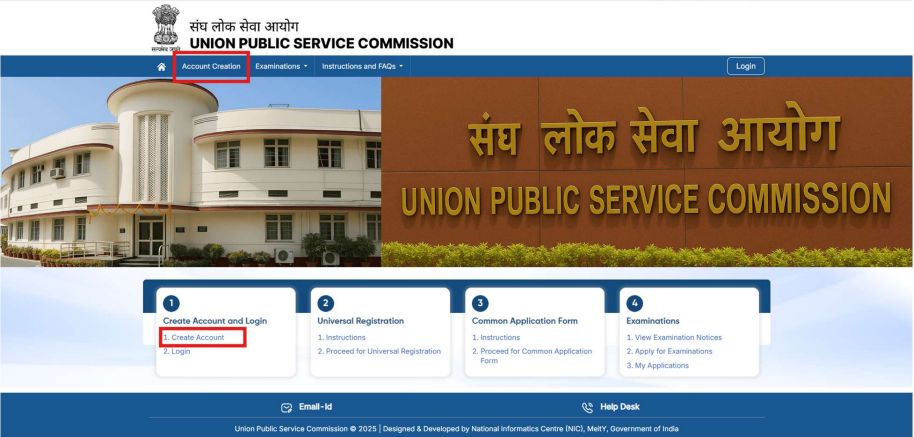
To apply for any form on the UPSC online portal, you first need to create an account on the UPSC online portal which can be done by clicking on “Account Creation” link on the navigation bar, or select “Create Account” from the first card.
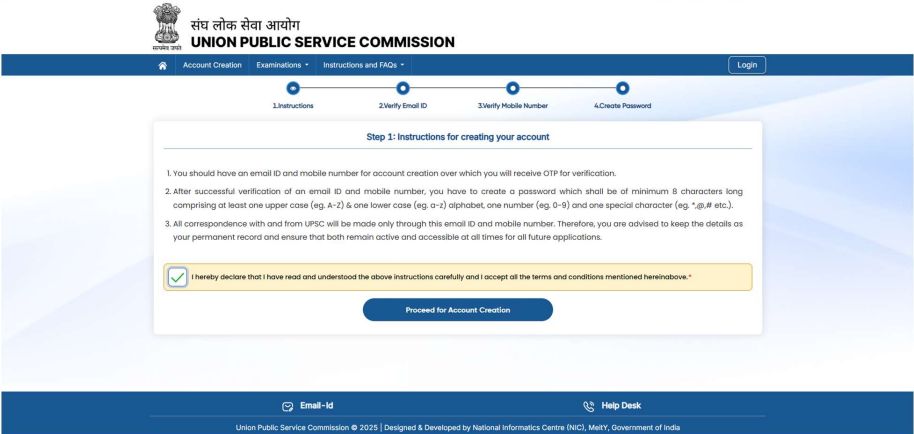
STEP 1: On Account Creation page, read the instructions mentioned on the page before proceeding for the Account Creation button to continue.
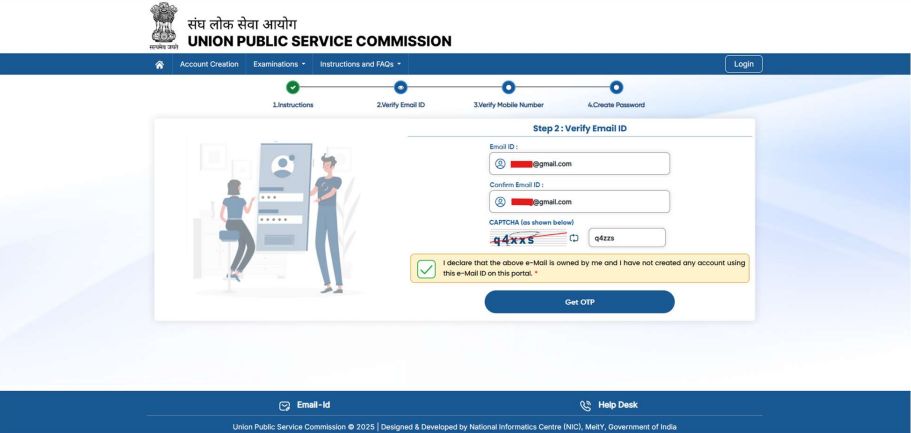
STEP 2: Enter your email ID. An OTP will be sent to this email, which you have to enter to verify the email ID.
STEP 3: Now, enter your mobile number and verify it using an OTP.
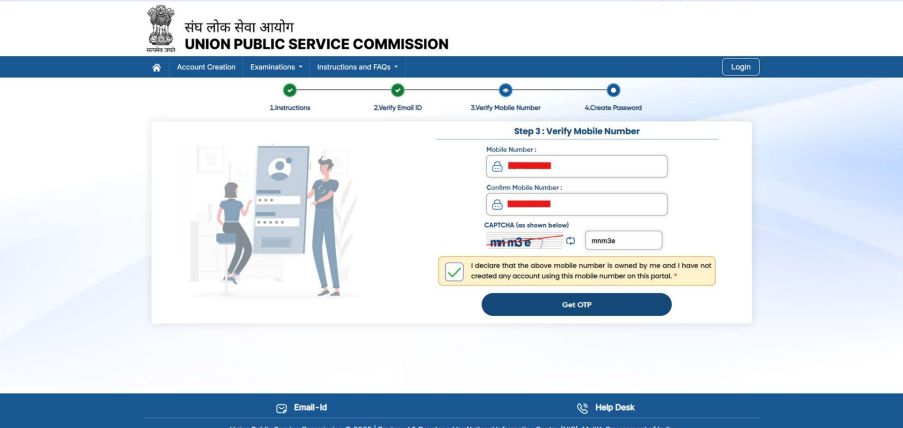
STEP 4: Create a password for your account.
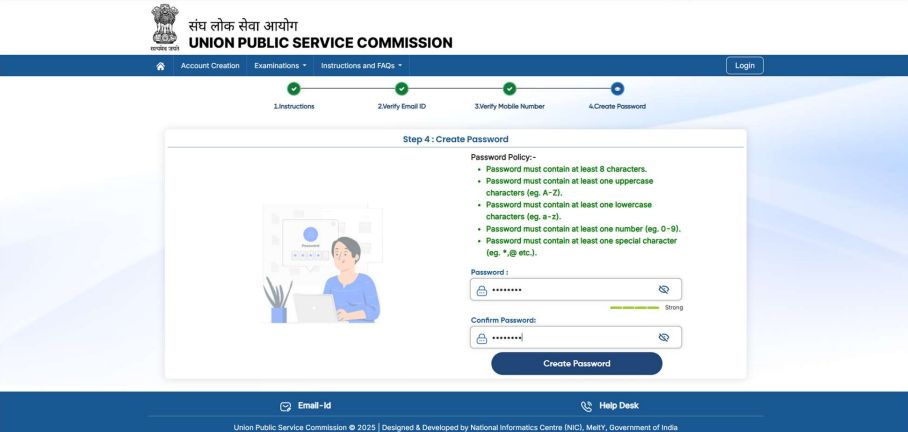
STEP 5: Account has been successfully created.
STEP 6: Enter your Mobile Number and OTP, URN and Password or Email ID and Password along with the captcha verification, and then click the Sign In button to proceed.
2. Universal Registration
Click the Universal Registration link on the homepage, you will first see the instructions. You must carefully read the instructions before proceeding for the next step.
STEP 1: The Universal Registration process requires you to fill the following profiles in the prescribed order:
-
Identity Profile: Enter details such as Name, Gender, Date of Birth, Father’s Name, Mother’s Name and Guardian’s name (if applicable).
-
Aadhaar / Photo ID: Furnish either Aadhaar information or an alternative valid Photo Identity Document as proof of identity
-
Matriculation Board Profile: Provide details related to your Class 10th (Matriculation) education, including Board Name, Roll Number, Year of Passing, etc.
STEP 2: Before locking the Universal Registration, carefully verify the data entered in all three modules/profiles.
STEP 3: Once you have verified all the data, you can click the 'Lock and Submit' button to complete your Universal Registration and generate the URN.
3. Common Application Form (CAF)
The Common Application Form has 10 profiles / modules. You are allowed to fill these profiles/modules in any order of your choice except the last one i.e. Photo and Signature profile. The profiles / modules are:
-
Personal Profile: personal information such as Nationality, Religion, Mother Tongue, State of Domicile, Marital Status, Place of Birth: Country, State, District and other related details.
-
Parents' Profile
-
Social Category Profile: Category to which you belong: General / SC / ST / OBC / EWS, along with supporting certificate and details
-
Disability Profile: Information regarding any Disability (PwD) or Benchmark disability (PwBD), along with Type of Disability, Percentage, and Disability Certificate details.
-
Address: Permanent and Correspondence
-
Educational Profile
-
Employment Experience Profile
-
Achievements
-
Previous UPSC Examination Profile
-
Photo & Signature: Upload passport-sized photograph, Live Photograph and signature in the prescribed format and size.
Once you complete the CAF, you will be directed to the dashboard and will be ready to apply for any examination. Now you can apply for any examination notified therein for which you wish to fill the form.
4. Examinations
STEP 1: To apply for a particular examination, you need to go to the 'Examinations' dropdown and click on the 'Apply for Examination' link after completing the CAF.
STEP 2: After clicking the 'Apply' button, you will need to lock your CAF data for that particular examination. The button to lock the CAF will be enabled only after you have viewed all the profiles/modules and checked the consent box given below.
STEP 3: Once you have successfully locked the Common Application Form (CAF) after verifying and submitting all required modules, the system will automatically enable access to the Examination-Specific Application Form for the particular exam you are applying for.
STEP 4: Filling Exam Specific form
STEP 5: Examination Centre Selection
STEP 6: Payment of Examination Fee & Form Submitted
STEP 7: On successful payment, a confirmation Page/PDF is generated and the application form is available for download and you can see the submitted applications in the Examinations drop-down in the navigation bar.
ALSO CHECK:




Comments
All Comments (0)
Join the conversation